TigerJython4Kids
 robotics
buttons
Deutsch   English   

6. BUTTONS & SOUND


YOU LEARN HERE...


how to use the two micro:bit buttons to develop interactive programmes. You will also learn how to play sound with your robot.


HOW THE BUTTONS WORK ?


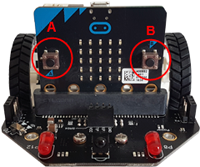
The micro:bit has two programmable buttons that make it possible to interactively influence the programme sequence during execution. The one on the left is addressed with the variable button_a, the one on the right with button_b.

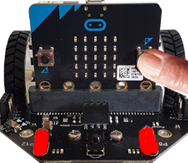
The button_a.is_pressed() function returns True if button A is pressed (similar button_b.is_pressed()).

The button_a.was_pressed() function returns True if button A was pressed (similar button_b.was_pressed()).


EXAMPLES


Example 1: The LEDs flash when button A is pressed

The programme waits in an endless loop until the right button is pressed. As long as the button is pressed, the LEDs are switched on and off every 400 milliseconds.

from microbit import *
from mbrobot import *

repeat:
    if button_a.is_pressed():
        setLED(1)
        delay(400)        
        setLED(0)
        delay(400)
Copy to clipboard
 

The commands for the buttons are in the microbit module, which you must also import.


Example 2: Sound is played when a button is clicked

A short melody should be played when button A or B is clicked. The button_a.was_pressed() function returns True if button a has been pressed briefly.

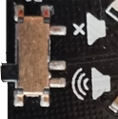
The robot is equipped with a buzzer that can play sounds and melodies. Make sure that the buzzer switch is set correctly. The play(JUMP_UP) command from the music plays a short melody. Some melodies are built into the music module..


from microbit import *
from mbrobot import *
#from mbrobot_plusV2 import *
from music import *

repeat: 
    if button_a.was_pressed():
        play(JUMP_UP)
    if button_b.was_pressed():
        play(JUMP_DOWN)    
Copy to clipboard

Das Modul music kann nur im Realmodus importiert werden. Zum Testen Im Simulationmodus kannst du diese Importzeile auskommentieren und den Befehl playTone(440, 1000) verwenden (440 ist di Tonfrequenz, 1000 die Abspieldauer in ms)


Examplel 3: A programme with a cancel button

For moving robots, it is advantageous to use an endless loop that is only repeated until a button is pressed.

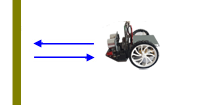
The robot moves to the obstacle it detects with its ultrasonic sensor and then back again.


As long as button A has not been pressed, the robot repeats the commands in the while-loop. Clicking the button ends the loop and the programme continues with the stop() commnd.


from microbit import *
from mbrobot import *
#from mbrobot_plusV2 import *

setSpeed(15)
forward()
while not button_a.was_pressed():
    d = getDistance()
    if d < 10:
        backward()
        delay(1000)
        forward()
    delay(200)
stop() 
Copy to clipboard

Example 4: Control the robot with buttons

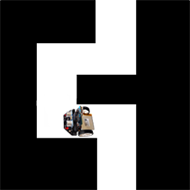
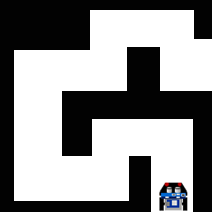
Click on button a or b to guide the robot through the maze. The robot moves forward until its light sensors detect darkness, then it briefly reverses and stops. When you press button a, it turns 90° to the left and moves forward again until it reaches the next dark edge. Clicking button b makes it turn right.

When running in simulation mode, an additional window with a micro:bit image appears (you may need to move the other graphics window). You operate the buttons with a mouse click.

 
from microbit import *
from mbrobot import *
#from mbrobot_plusV2 import *

RobotContext.useBackground("sprites/bg.gif")  
RobotContext.setStartPosition(310, 460)

forward()
repeat:
    v = irLeft.read_digital()
    if v == 0:
        backward()
        delay(500)
        stop()
    if button_a.was_pressed():
        left()
        delay(550)
        forward()
    elif button_b.was_pressed():
        right()
        delay(550)     
        forward()
    sleep(10)
Copy to clipboard


REMEMBER...


You can use buttons to develop interactive programmes. The function is_pressed() returns True when the button is pressed. The function was_pressed() returns True if the button has been clicked at any point since the programme started or since the last call.


TO SOLVE YOURSELF


1.

Clicking on button a triggers the alarm, clicking on button b calls the command setAlarm(0) and stops the alarm.


2.

Clicking on button a should make the robot move forward for 2000 milliseconds and stop, clicking on button b should make it move backward for 2000 milliseconds and stop.

3.

The robot should drive through the course by clicking on button a or button b to tell it whether to turn left or right.

Solve the task in simulation mode and use the background image bg2.gif


4.

In Chapter 2 under additives, you can see how to switch the LEDs on and off individually. Write a programme that switches on the left LED and switches off the right LED when you click the left button, and switches on the right LED and switches off the left LED when you click the right button.

5.

Test your robot's buzzer. If you have micro:bit V2, the sound can be played either with the buzzer on the micro:bit or with the buzzer on the robot board. You can set this with the buzzer switch (see example 2).

Import the music module into your programme and play a few melodies using the command
play(sound). You can also find the list of predefined melodies in the documentation.

You can play individual notes using the command pitch(784, 400) from the music module. The first parameter is the note frequency, the second is the playback duration.


6-1
Technical notes:

Melodies that are built into the music module (real mode only):

ADADADUM - Eröffnung von Beethoven 5. Sinfonie in C Moll
ENTERTAINER - Scott Joplin Ragtime Klassiker
PRELUDE -J.S.Bach 48 Preludien und Fugen
ODE - Ode an Joy Thema aus Beethoven 9. Sinfonie in D Moll
NYAN - das Nyan Cat Thema
RINGTONE - ein Klingelton
FUNK - ein Geräusch für Geheimagente
n BLUES - ein Boogie-Woogie Blues
BIRTHDAY - Happy Birthday to You...
WEDDING - der Chorus des Bräutigams aus Wagner Oper Lohengrin
FUNERAL - der Trauerzug, Chopin Klaviersonate
PUNCHLINE - a lustiger Tonclip, nachdem ein Witz gemacht wurde
PYTHON - aus Monty Python Flying Circus
BADDY - Filmclip aus The Baddy
CHASE - Filmclick aus einer Jagdszene
BA_DING - ein Signalton, der darauf hinweist, dass etwas geschehen ist
WAWAWAWAA - ein trauriger Posaunenklang
JUMP_UP - für Spiele, um auf eine Aufwärtsbewegung hinzuweisen
JUMP_DOWN - für Spiele, um auf eine Abwärtsbewegung hinzuweisen
POWER_UP - ein Fanfarenklang
POWER_DOWN - ein trauriger Fanfarenklang, wenn etwas verloren gegangen ist